Mining Ergo on HiveOS

Translation temporarily unavailable. Showing original English.
Ergo Platform

2022年3月22日

Have you ever wanted to mine Ergo but thought you might not have the technical knowledge? Surprisingly, it is not as inaccessible an activity as you might have thought. Whether you are a novice or experienced crypto miner, it is actually quite easy to mine Ergo. In our previous blog post, we offered steps on how to mine Ergo on Windows (Mining Ergo on Windows). With this article, we will guide readers through the steps of mining Ergo with the popular crypto mining operating system, HiveOS.

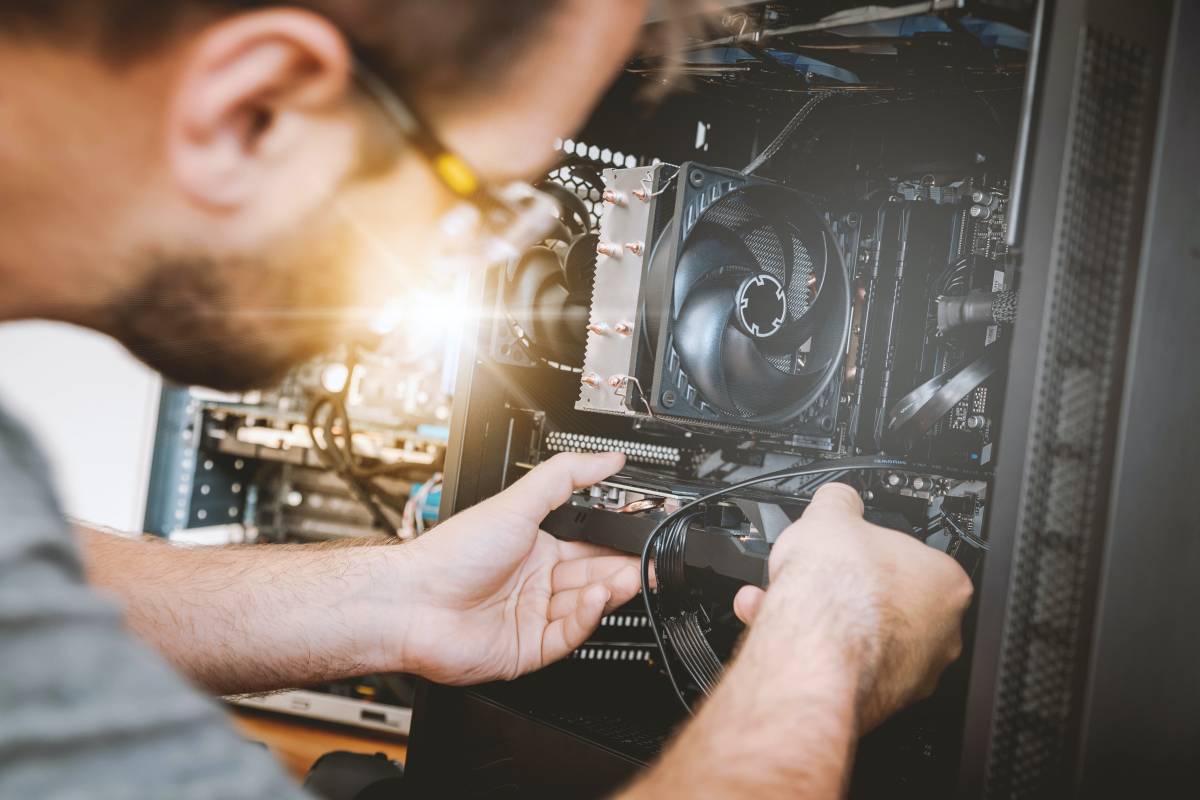
You do not necessarily need to have a mining rig to mine Ergo. If you have a personal PC with a compatible GPU, you can easily mine Ergo and earn passive income.

You will need the following to mine Ergo:

  • a computer (or mining rig) with a GPU video card that has a minimum of 4GB of RAM (ideally more if within your budget)
  • An external SSD or USB key (minimum 6 GB) to create a bootable drive - this writer has had greater success using HiveOS on an SSD but many miners also use a USB key.
  • an Ergo wallet (such as Nautilus)
  • a HiveOS account - we will guide you through setting this up.

Let’s start by getting your HiveOS account. 

  • Go to the following website: https://the.hiveos.farm/login 
  • You will see a login screen with the following message below it: “Don’t have an account yet? Register”
  • Select “Register”
  • Once prompted, complete the form with your email, a login name and a password.

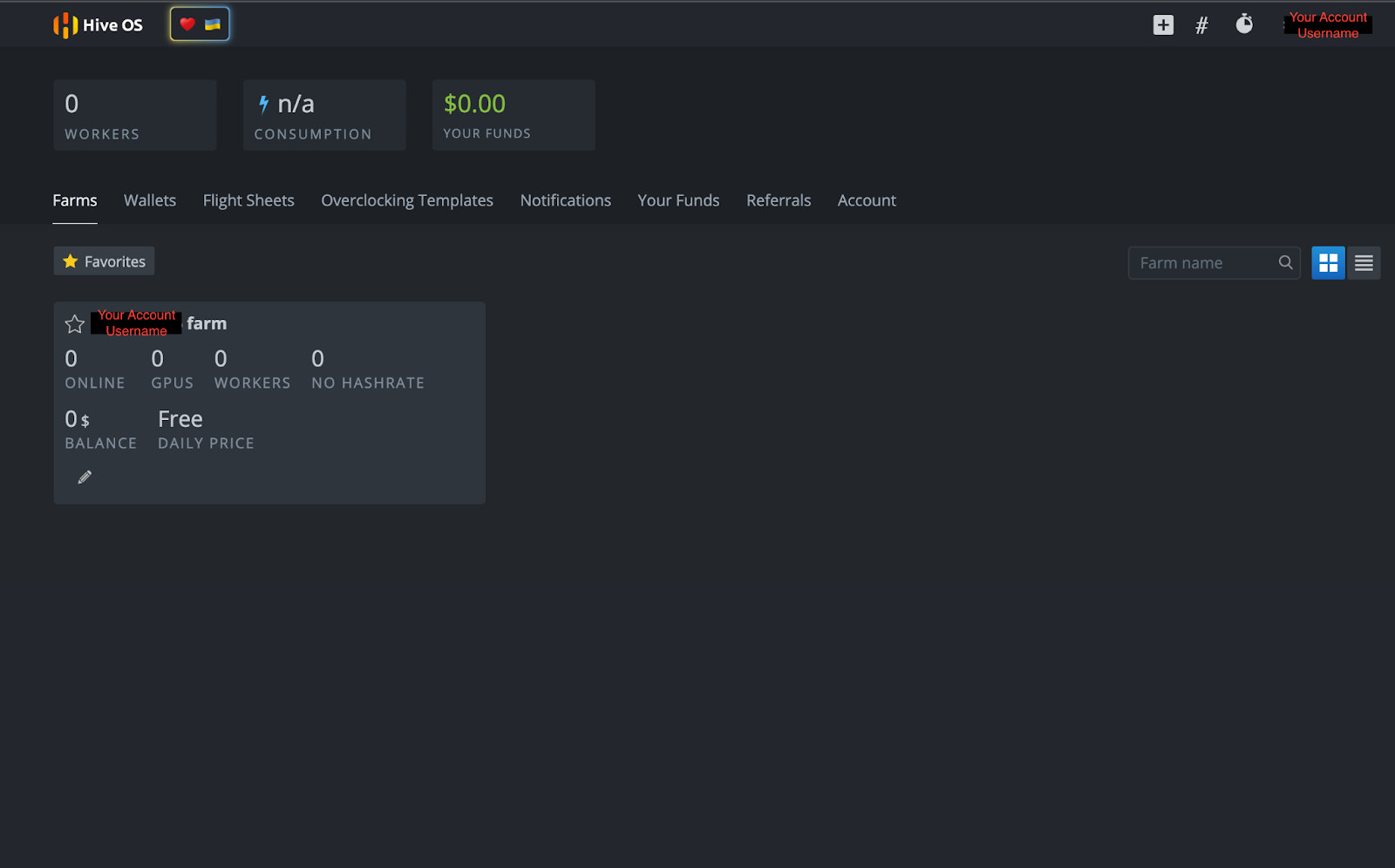
Once you have created your account, you will be asked to verify your email and then be offered the opportunity to enable Two Factor Authentication (2FA) for stronger security. When finished with 2FA, you will see the following screen:

Because HiveOS is a dedicated crypto mining operating system, the user interface allows access to numerous features, including power consumption, overclock settings, remote power access and other crypto mining actions. Users can also control all of these features remotely on a smartphone with the HiveOS app.

Creating a HiveOS Bootable Drive

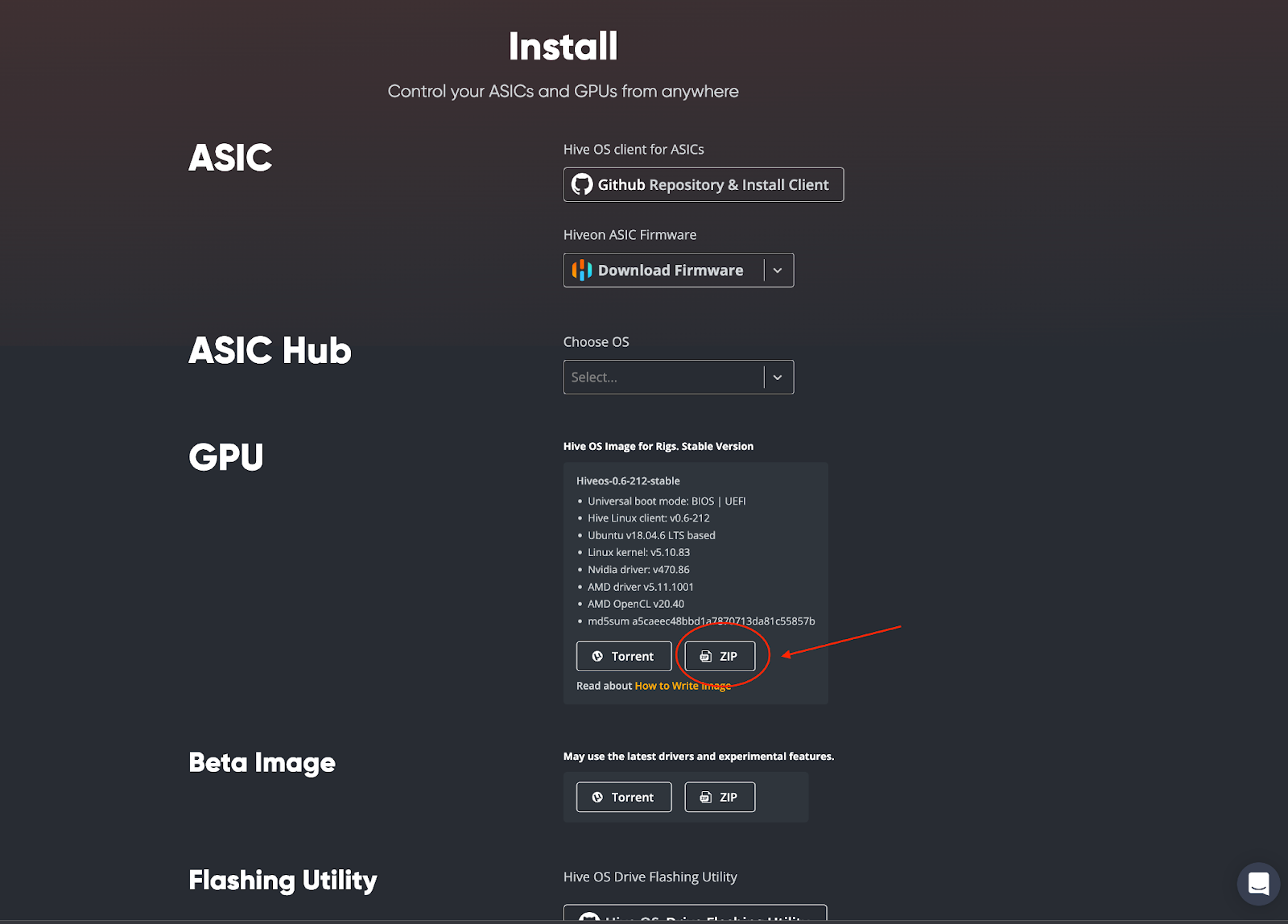
Now that you have your HiveOS account, you need to create a bootable drive for the operating system. Go to https://hiveon.com/install/ and download the ZIP file under the “GPU” category.

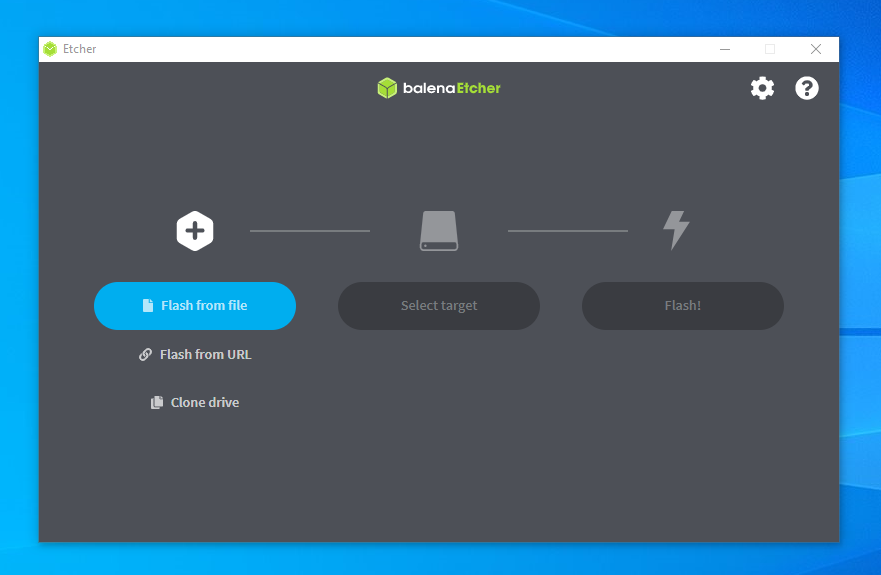
Once downloaded, you will need to flash the operating system onto your external SSD or USB key. This writer chose to use balenaEtcher for creating the bootable drive and readers can access that open source software here: https://www.balena.io/etcher/. Download and install the balenaEtcher software on your computer. Once completed, open balenaEtcher on your computer. You will see the following screen:

You will then follow these steps:

  • Select “Flash from file” - you will choose the downloaded HiveOS file (ex. hiveos-0.6-212-stable@211201.img.xz)
  • Then click on “Select target” - you will chose your external SSD or USB key
  • Finish the process by selecting “Flash!”

That’s it! You now have HiveOS installed on your bootable drive. We have just a few things left to set up in your HiveOS account before we can start mining so let’s go back to your account page.

Setting Up Your Miner

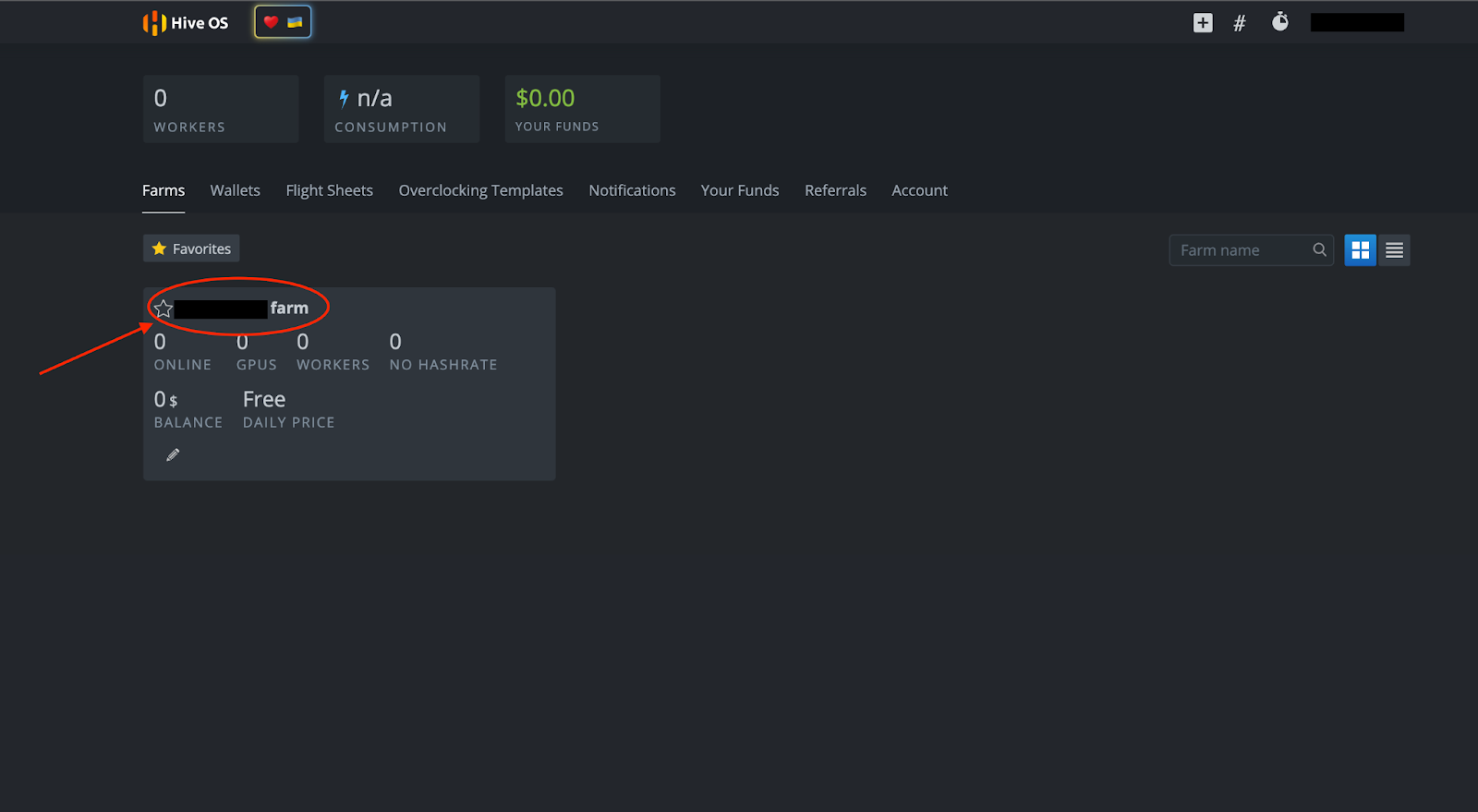
On your HiveOS account page, click on your farm name:

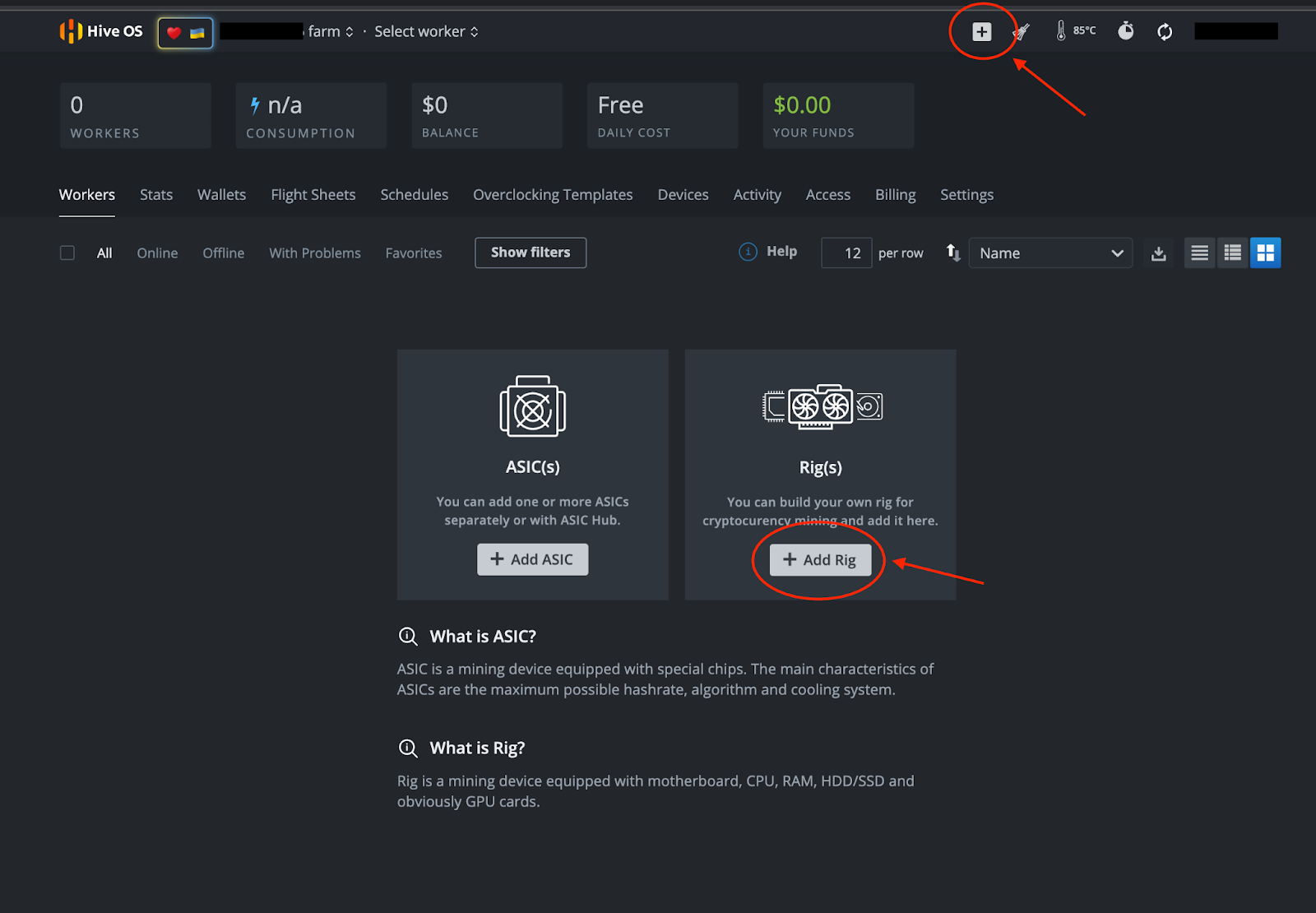
You will see the following page below. From here you can set up your miner by selecting “+ Add Rig” or the “+” symbol at the top of the page.

Follow these steps:

  • Select “+ Add Rig”
  • On the next screen, select “Connect existing”
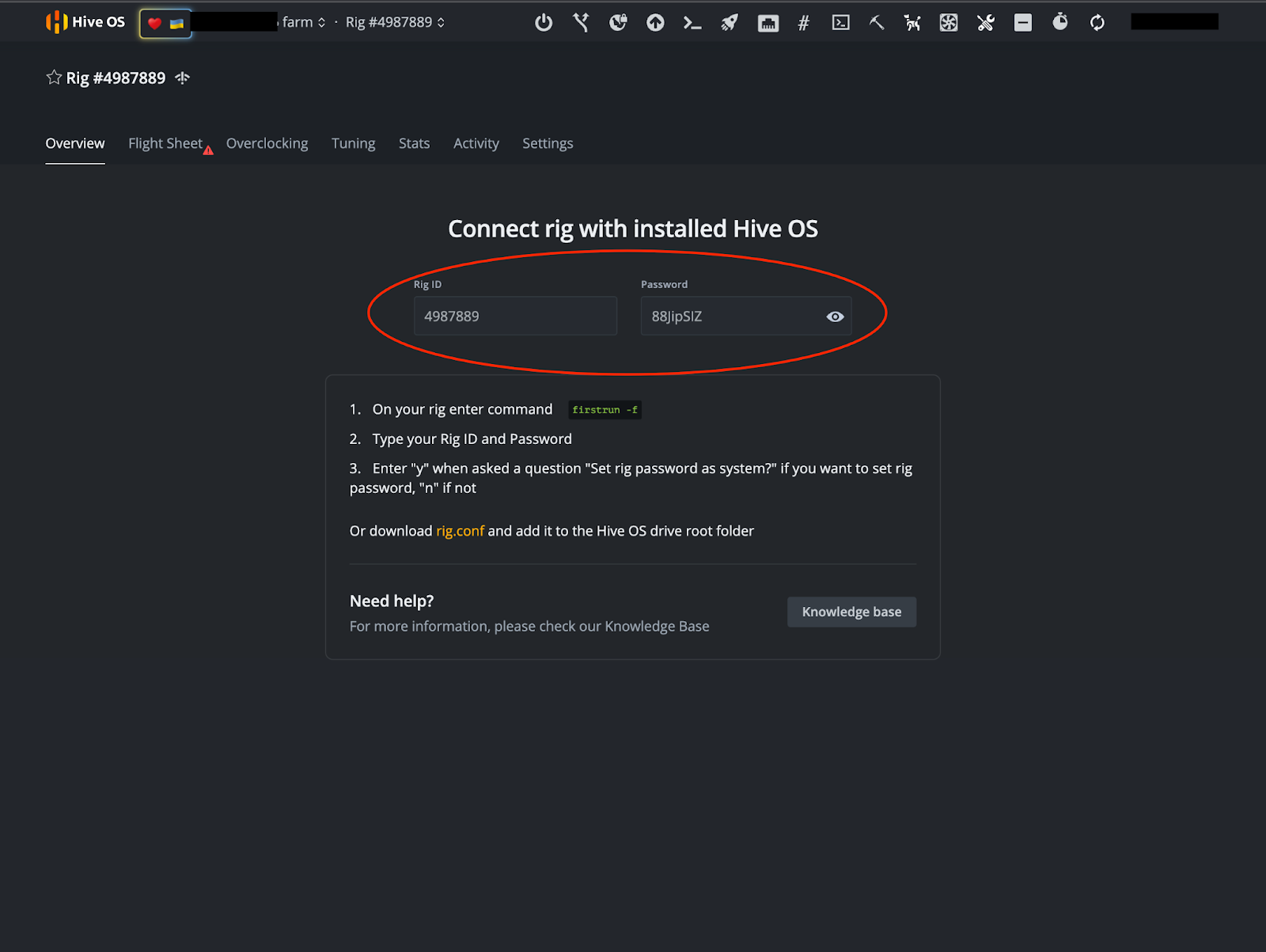
  • IMPORTANT: Write down the Rig ID and password (you will need to click on the eye symbol to see the password) that you see on the next page:

Note: This is not a demonstration account and is not an operational miner.

Wallet and Flight Sheet

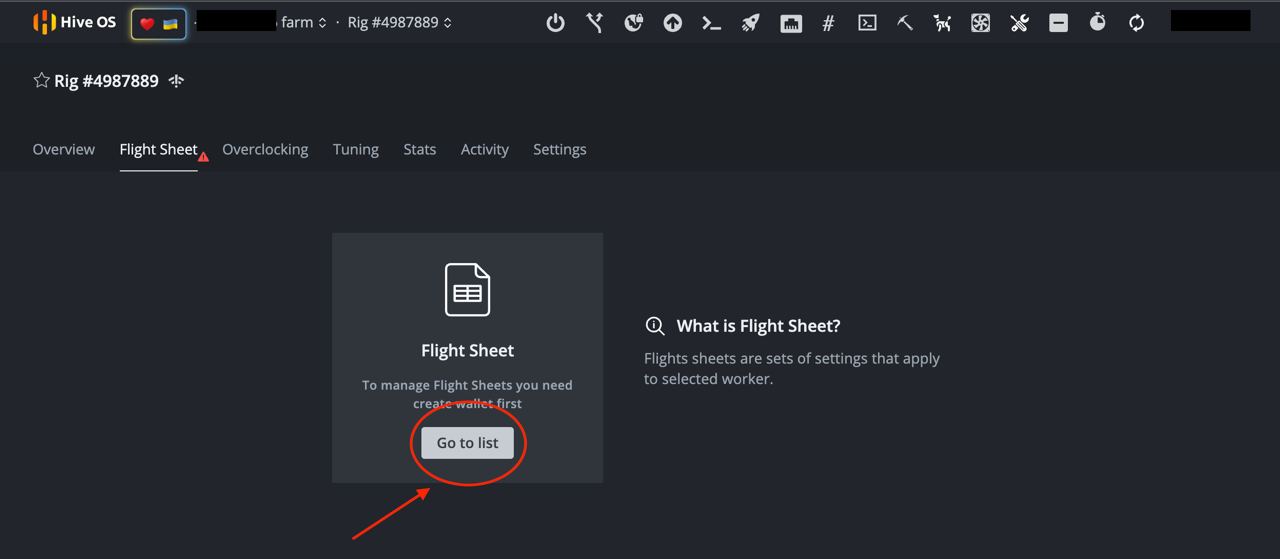
Once you have taken note of your Rig ID and Password, it is time to set up your wallet and Flight Sheet. In the above image, you will see a “Flight Sheet” tab near the top right of the screen. After you select that tab you will be prompted to “Go to list.”

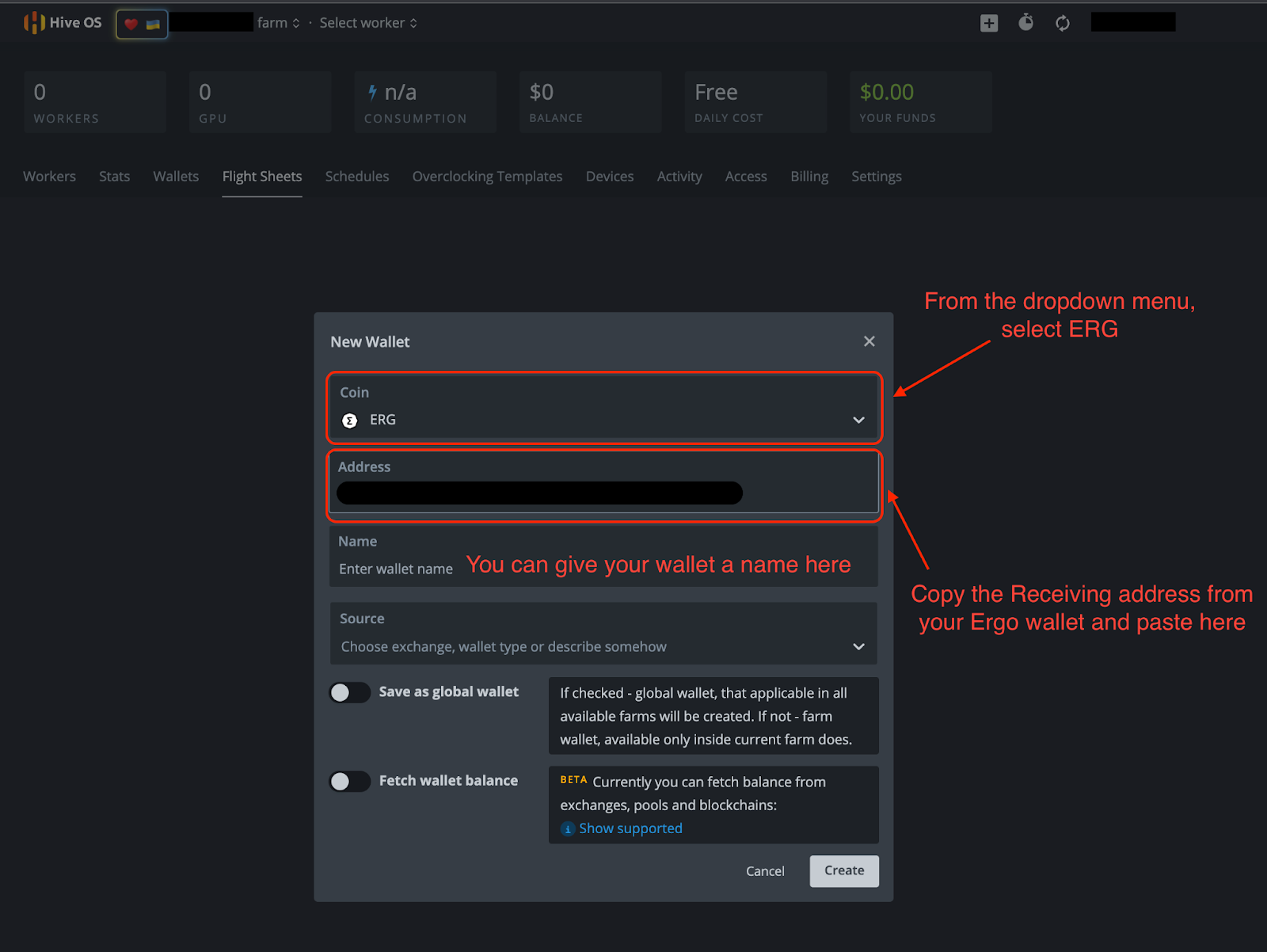
Select “Go to list” and click on “+ Add Wallet.” From there, you will fill in the necessary information in the image below.

  • Coin: ERG
  • Address: Your Receiving address from your Ergo wallet.
  • The other details are optional.
  • Click “Create”

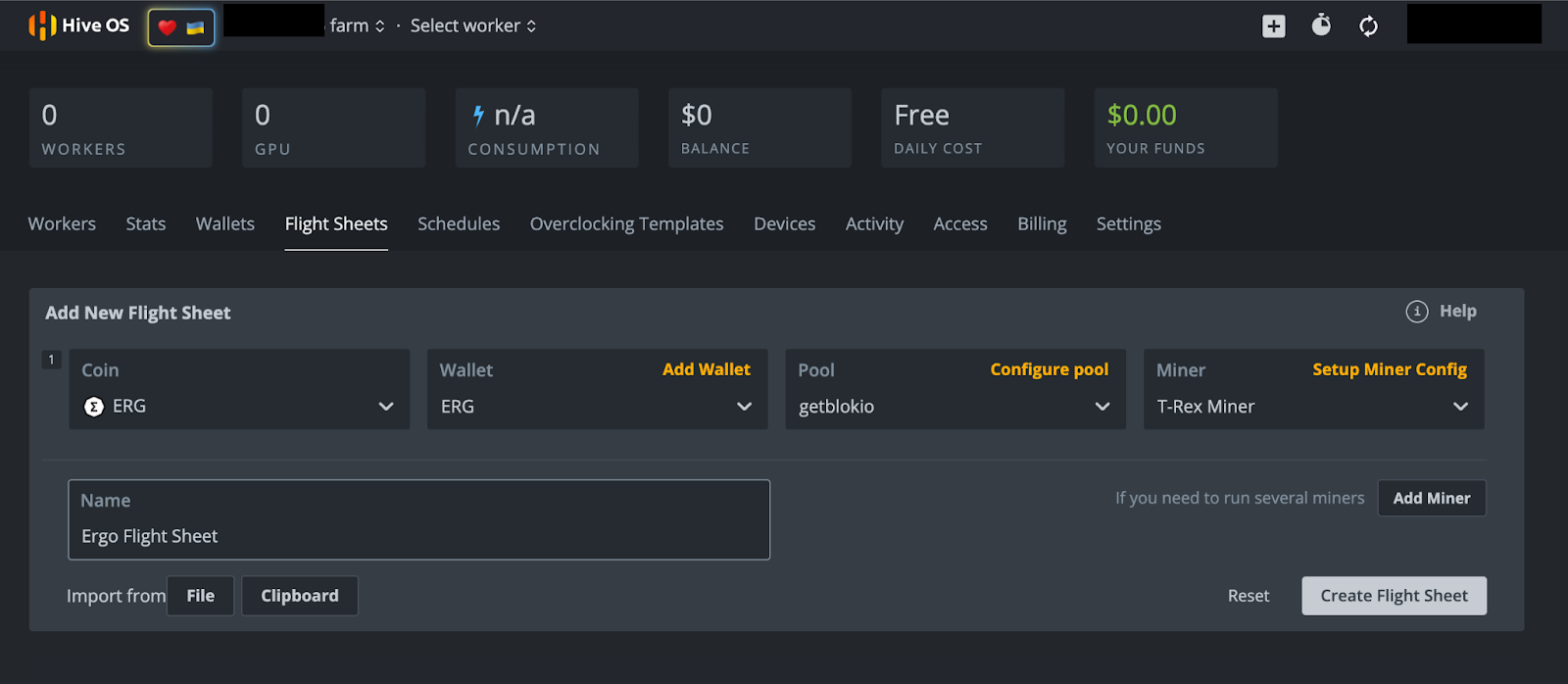
After you click “Create,” you will be brought back to the Flight Sheet page. From there, select the “+ Add Flight Sheet” option and fill out the following in the next screen (example in the image below).

  • Coin: ERG
  • Wallet: From the dropdown menu select your Ergo wallet.
  • Pool: You have numerous options here. This writer has selected Getblok mining pool but you will have several other pools to choose from under the dropdown menu. When choosing a pool, it is often encouraged to choose a smaller pool with less hashrate than the largest pool. This helps to distribute the hashrate and limit the chances of a 51% attack. This can happen if one mining pool receives 51% (or more) of the network’s hashrate, creating a scenario that could potentially compromise the security of the blockchain.
  • Miner: From the dropdown menu you will have several options. Choose “T-Rex Miner” for Nvidia GPU’s or “TeamRedMiner'' for AMD GPU’s.
  • Name: Give your Flight Sheet a name - it can be whatever you wish.
  • Select “Create Flight Sheet”

Mining

Let’s get mining!

If you are mining from a rig, be sure that your new HiveOS bootable drive is connected to your rig. If you are using your personal computer, make sure you have your HiveOS bootable drive connected before turning on your computer. 

Turn on your computer and hold down the button to enter BIOS. This button is typically any of the following: F1, F2, F10, DELETE, or ESC. Once you are in BIOS, select the HiveOS bootable drive under the Boot option. If you have trouble accessing these settings, the following article offers an overview on how to reboot your computer from another drive.

Since this will be the first time you have initiated your miner in HiveOS, you will need to input the Rig ID and Password that you wrote down earlier. Just wait for HiveOS to finish loading and you will be prompted for that information. If you are not prompted after waiting for a few minutes, type “firstrun -f” and hit ENTER. The operating system will ask if you want to change your miner password after you type in the password that was initially provided. You can select “Y” (Yes, change password) or “N” (do not change password).

There is just one last step and it requires that you go into your HiveOS account. If you were accessing this account from the computer you are trying to mine from, we recommend using the HiveOS mobile application to access your HiveOS account. 

  • Select the name of your farm.
  • Select the Rig #. For the purposes of this demonstration, the rig number we have been showing in the above images is 4987889. Please note, your rig number will be unique to your HiveOS account. 
  • Select the “Flight Sheet” tab.
  • On the next screen, you will see a rocket ship symbol next to the Ergo Flight Sheet you created. Click on the rocket ship to assign the flight sheet to your miner.
  • Your miner is now mining Ergo.

Conclusion and Overclocking

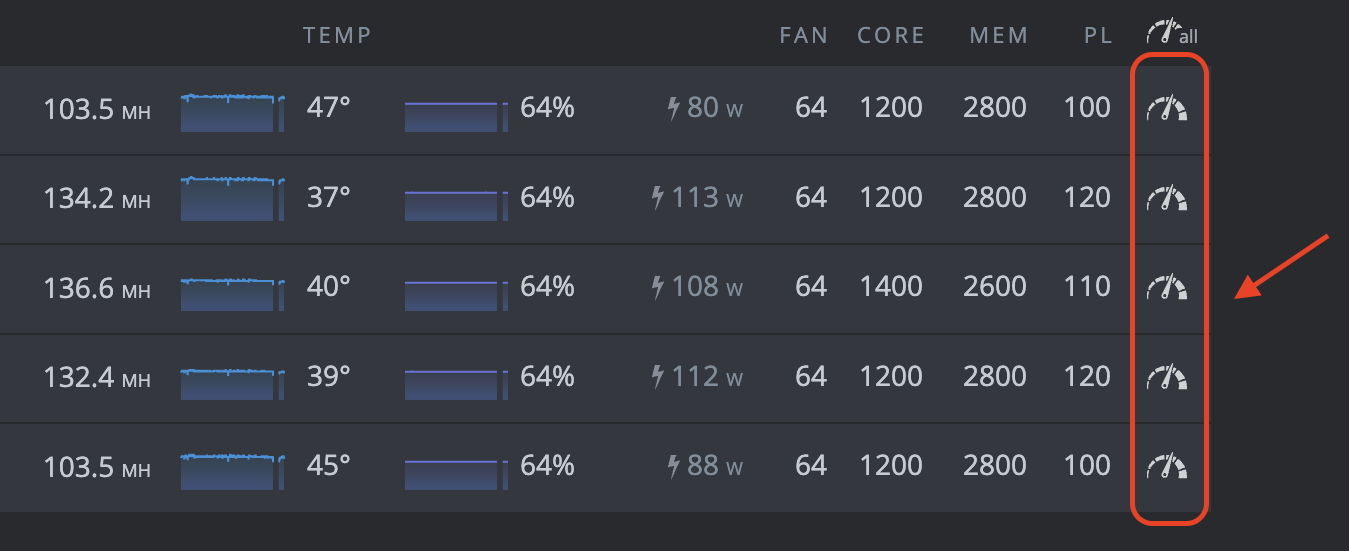
As was mentioned earlier in this article, you can enjoy full remote access to your miner from the mobile app. If you have taken the time to set up this miner, you should make the most of your GPU’s capabilities.

You can click on any of these clock symbols to access the overclock settings for each of your GPU’s. For detailed overclocking guides, please refer to the Ergo Mining Telegram Channel. That channel contains an overclocking guide in the pinned messages.

That’s it! This may seem like a lot of steps but once you have this all set up, the HiveOS software provides convenient access to your miner. Happy mining! You should start to see ERG deposited in your Ergo wallet within 1-2 days (depending on your hashrate).

Share post

Ergo基础设施DAO:去中心化Ergo生态系统的支柱

Ergo基础设施DAO:去中心化Ergo生态系统的支柱

Ergo的使命一直根植于去中心化,不仅在共识层面,而是在整个技术栈中。随着Ergo基础设施DAO (InfraDAO)的推出,这一愿景正在扩展到每天为生态系统提供动力的服务和基础设施。 InfraDAO现在在Paideia上正式上线,经过成功的治理投票。最初.

Ergo Platform

2025年8月13日

Mew Finance:一个为Ergo生态系统提供的有趣DeFi工具包

Mew Finance:一个为Ergo生态系统提供的有趣DeFi工具包

Mew Finance是一个基于Ergo区块链的去中心化应用套件。该项目于2024年10月启动,将DeFi、数字资产和跨链功能整合到一个统一的平台中。长期社区开发者HQΣr和Aco Šmrkas领导该项目。设计上偏向模块化、易用性和深度生态系统集成。 本文是.

Ergo Platform

2025年8月12日

Lithos:通过链上矿池实现去中心化挖矿

Lithos:通过链上矿池实现去中心化挖矿

Lithos是一个新协议,旨在通过将矿池转移到链上来彻底改革矿池的运作方式,使矿工完全控制,并消除对中心化矿池运营商的需求。与之前大多数去中心化挖矿的尝试不同,Lithos旨在高效、可扩展和安全。 什么是Lithos? Lithos是一个去中心化的矿池协议.

Ergo Platform

2025年7月24日

Sigma 6.0:更智能、更灵活的Ergo

Sigma 6.0:更智能、更灵活的Ergo

Sigma 6.

Ergo Platform

2025年7月23日

塑造Rosen的未来:关于五项关键财政提案的社区呼吁

塑造Rosen的未来:关于五项关键财政提案的社区呼吁

Rosen的联合创始人Armeanio已向Rosen财政提交了五项新提案。这些提案概述了Rosen Bridge的增长、实用性和可扩展性的战略愿景,这是Ergo互操作性基础设施的核心组成部分。 这是Ergo社区审查和讨论这一重要跨链服务未来方向的关键时刻。以.

Ergo Platform

2025年7月9日

Ergo的扩展UTXO与人工经济智能的崛起

Ergo的扩展UTXO与人工经济智能的崛起

自主经济代理的实用愿景 Ergo区块链上的自主经济代理在真实的数字经济中执行有用的工作。它们通过创建内容和提供数据分析、模式识别等服务来产生收入。它们利用收入支付运营费用,如托管费和服务器成本,并使用现代工具,如SSH和加密友好的托管服务提供商。当有额外资金.

Ergo Platform

2025年5月12日

ErgoHACK X:在Ergo区块链上的人工智能

ErgoHACK X:在Ergo区块链上的人工智能

庆祝去中心化创新的十年 加入第十届ErgoHACK,站在Ergo区块链AI革命的最前沿!释放你的创造力,与其他创新者合作,共同构建去中心化AI的未来。 关于ErgoHack ErgoHACK,旗舰社区黑客马拉松,庆祝其十周年!这一里程碑事件是Ergo生态系统.

Ergo Platform

2025年4月10日

ERG正式上线Kucoin(库币)交易所

ERG正式上线Kucoin(库币)交易所

据Kucoin官方通告,Ergo平台原生代币ERG于8月3日正式上线Kucoin(库币)交易所。目前支持的交易对是ERG/USDT。现已开放充值;2021年8月5日UTC时间上午10:00开放交易;2021年8月6日UTC时间上午10:00开放提币。 .

Ergo Foundation

2021年8月3日

Ergo两周年纪念——早期采用者应了解的核心知识

Ergo两周年纪念——早期采用者应了解的核心知识

Normal 0 false false false EN-US ZH-CN X-NONE /* Style Definitions */ table.

root7Z

2021年7月5日

关于Ergo启用官方QQ频道的公告

关于Ergo启用官方QQ频道的公告

由于Ergo官方微信号暂无法使用,Ergo官方现新增Ergo官方QQ频道:796039547。全球中文用户可通过扫描下面的二维码加入Ergo中文社区,及时了解Ergo最新官方动态. .

Eva Qing

2021年6月30日

Ergo首届黑客松大赛ERGOHACK圆满结束

Ergo首届黑客松大赛ERGOHACK圆满结束

Ergo首届黑客松大赛已经圆满结束,它正如计划那样:规模小而富有实验性,但依然收到了一些很棒的作品提交。Kushti以他的开场视频拉开了活动的序幕,然后我们总共有六个团队,其中来自anon_real(AuctionHouse、SigmaUSD UI等项目的创建.

Curia Regis Crypto

2021年6月29日

关于举办首届Ergo中国社区驱动践行活动的公告

关于举办首届Ergo中国社区驱动践行活动的公告

为了进一步提高Ergo公链平台在中国的知名度,让更多用户深入了解Ergo,同时为了践行Ergo社区驱动的理念,Ergo中国社区现特别举办“首届Ergo中国社区驱动践行活动”。活动参与者积极向新用户布道Ergo并将其引至Ergo官方指定社群,将有机会赢取ERG奖.

Eva Qing

2021年6月4日

比特币的前进之路是努力追赶Ergo ——Ergo率先实现扩展UTXO智能合约

比特币的前进之路是努力追赶Ergo ——Ergo率先实现扩展UTXO智能合约

比特币 比特币是一头野兽。是的,其底层软件需要认真升级。它真的太慢了。但是,您也必须承认它的优势,网络效应是非常强大的------比特币是加密货币之王。在全球范围内,比特币正成为一个常见、被理解和被采用的术语。大型信托、投资巨头和对冲基金经理,都被比特币的主.

Curia Regis Crypto

2021年5月23日

关于Ergo基金会任命谭声情先生担任中国区大使的公告

关于Ergo基金会任命谭声情先生担任中国区大使的公告

经Ergo基金会批准,现任命谭声情先生(英文名:Tango)担任Ergo中国区大使。 为了提升Ergo在中国的知名度与影响力,Ergo基金会现授权谭声情先生以Ergo中国区大使身份进行Ergo在中国的品牌宣传、商务洽谈、社区活动、主题推广等事宜。 此任命自.

Ergo Team

2021年5月16日

硬分叉事后说明

硬分叉事后说明

英文链接: 应@kushti的请求,我现在给大家说明一下今天在硬分叉升级期间发生的事情。有一些BUG导致矿工无法出块,现已修补好这些BUG,矿工可以出块。 version2ActivationDifficultyHex中出现往返编码失败(Round-T.

Eva Qing

2021年2月3日

硬分叉升级后Ergo挖矿须知

硬分叉升级后Ergo挖矿须知

Ergo将在区块#417,792上进行硬分叉协议升级。此次升级会引入重大更改,包括将关闭不可外包功能(Non-Outsourceability)。经过此次硬分叉之后,新的PoW(被称为Autolykos v2.

Eva Qing

2021年2月1日

如何设置和配置Ergo全节点

如何设置和配置Ergo全节点

如何设置和配置Ergo全节点 本教程说明了如何安装和运行Ergo全节点,不涵盖挖矿。  Windows用户还可以观看视频教程。 如何在Windows上设置和配置Ergo全节点 视频链接: 节点安全 这里是节点使用的一些重要方面,您的钱包及代币是否安全.

Eva Qing

2021年1月21日

既想享受乐趣,又想赚取利润? ——那就赶紧来挖ERG

既想享受乐趣,又想赚取利润? ——那就赶紧来挖ERG

Ergo GPU挖矿 本文将帮助您开始使用GPU挖矿Ergo原生代币ERG。 Ergo挖矿基于Autolykos,即一种工作量证明(PoW)算法,被设计为阻碍ASIC矿机和矿池。矿工须执行存储困难的计算(需要至少4 GB的内存,但是当前最有效的实现使用的是.

Eva Qing

2021年1月21日

适用于AMD GPU的Autolykos v2(Ergo)的OpenCL挖矿软件

适用于AMD GPU的Autolykos v2(Ergo)的OpenCL挖矿软件

适用于ergoplatform.

Eva Qing

2021年1月19日

适用于Nvidia GPU的Autolykos v2(Ergo)用Cuda挖矿软件

适用于Nvidia GPU的Autolykos v2(Ergo)用Cuda挖矿软件

用于ergoplatform.

Eva Qing

2021年1月19日

尔格基金会为主要去中心化应用(dApp)基础设施提供资助

尔格基金会为主要去中心化应用(dApp)基础设施提供资助

尔格基金会将考虑支持重大生态系统开发项目提供资助的建议。 尔格是一个面向社区的项目,该生态系统的方方面面都有许多贡献者。尔格基金会会拿出一部分资金资助此项工作,这对于构建用户所需的日常产品与服务以及更多样化的金融去中心化应用至关重要。该基金会正在积极寻求.

Guy Brandon

2020年11月17日